Skip to content

Posts from Streams (including Mikogo, TeamViewer, etc.) - technical aspects.

No ratings yet — be the first to rate!
User Avatar
13 years ago
Auto-translated
Does anyone know why Twitch streams are sometimes deleted after a certain period of time?
User Avatar
13 years ago
Auto-translated
By default, videos are stored there for a couple of weeks, after which they are automatically deleted. To save a video permanently, open it and click on the gear icon at the bottom; there you will find an option to "save forever."
User Avatar
13 years ago
Auto-translated
Here's the question. I have TeamViewer version 8. Why can't I connect to some broadcasts? Please enlighten a newbie.
User Avatar
13 years ago
Auto-translated
I was prompted to write this post because I wanted to watch Maretti's stream, but streaming through TeamViewer is just unwatchable...:( I mean, the image itself is great, but it's all jerky, the picture changes in strips one after another. I wrote to him in a private message about how to set everything up on Twitch, but it seems he doesn't know how to read private messages here =)))
So, I'm writing my own version: How to start streaming on Twitch.tv, because there's a lot to read on Vaflya's page.
I think the settings will work for everyone, because my computer isn't that powerful (Athlon X2 250 Processor 3.00 Ghz, 4Gb RAM, GeForce GT240 1Gb), and my internet speed is, according to my provider, 5Mb/s.

So, let's get started:

Setting up XSplit for streaming on Twitch.tv

1) Register on www.twitch.tv
2) Register on www.xsplit.com and then download XSplit
3) Install XSplit. Launch it. Log in. Wait 10 seconds and click Continue
4) Now, let's set everything up:
- In the XSplit window, select the Broadcast tab, then Edit channels... and Add... - here, select Justin.tv/Twitch
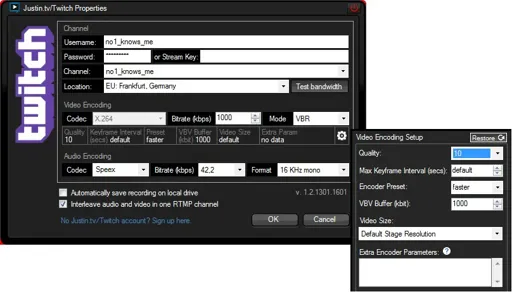
- Now, in the Justin.tv/Twitch Properties window that opens, configure the settings:
> In the Username field, enter the login you used when registering on twitch.tv (in my case, it's no1_knows_me)
> In the Password field, enter the password you use to log in to twitch.tv
> In the Stream Key field, you need to put in a little effort:
- Go to your account on twitch.tv
- Go to the Dashboard and click on Stream Application
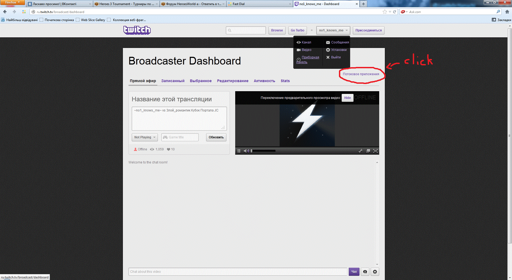
- A new tab opens, and on the right, click on Show Key (it should be something like live_38354680_wtg6G7u2irfUt5xe1Wd3QxpPhjlT2k) - this is our Stream Key. Copy this set of letters and numbers and paste it into the Stream Key field in the XSplit settings.
> In the Channel field, enter the channel name
> In the Location field, I think this is the connection to the servers. I chose Germany, Frankfurt, because it had the best ping.
> In the Bitrate field, leave it at 1000
> In the Mode field, leave it at VBR
- Under this field, click on the gear icon and set:
> In the Quality field, set it to 10
> In the Max Keyfram Interval (secs) field, leave it at default
> In the Encoder Preset field, select faster
> In the VBV Buffer (kbit) field, leave it at 1000
> In the Video size field, leave it at Default Stage Resolution
> Leave everything else as is. Click OK at the bottom.
This is what the settings window should look like:
Now, in the main XSplit window:
- In the lower left, click Add, then Add screen region... and drag to cover the entire screen.
- Now, in the center of the main XSplit window, a small picture of our stream has appeared - stretch it to the maximum.
- Click on the View tab, then Resolution and select 960x600
- Again, go to View, then Frame rate and set your value to 22.00 fps, which should be enough
- Again, View, then Scale viewport and set it to 20% - this will reduce the window.
That's it. Done.
Click on the Broadcast tab and click on Justin.tv/Twitch - your login. After a few seconds, you will be streaming everything that happens on your desktop :)

P.S. For high-quality streams, you need a licensed version of XSplit, as well as a powerful processor and a good internet connection. But even so, it's still better than streaming through TeamViewer. Good luck ;)
Attachments 2
2 files attached • Total size: 529.8 KB
User Avatar
13 years ago
How to start streaming on Twitch.tv

1) register on www.twitch.tv (further settings are for twitch.tv, and I'm not sure about other sites like sc2tv...)
2) register and download XSplit Broadcaster www.xsplit.com
3) install XSplit. Launch. Log on. Wait 10 sec. Continue.
4) now we need to adjust everything... and first we need to connect XSplit and twitch.tv:
- in XSplit main window we go to Broadcast - Edit channels... - Add... choose Justin.tv/Twitch
- now we are in Twich Properties and here we have to set everything correctly.
- field Username you put your username which you registered on twitch.tv (in my case it is no1_knows_me)
- field Password you put your password which you use for signing on twitch.tv
- field Stream Key here you have to go on your twitch.tv account, there you go to your Broadcaster Dashboard and there in the right upper corner with the violet color should be written something like Streaming application... (I'm not sure about correct translation) so you click on that streaming application and we go to new window where you have to find again in the right upper corner violet Show Key so you click on it and receive your Stream Key... should be smth like this live_38354680_wtg6G7u2irfUt5xe1Wd3QxpPhjlT2k

- so you copy your key and paste in the field Stream Key
- field Channel you choose your channel
- field Location you choose the better you have... I chose Germany, Frankfurt
- field Bitrate leave 1000
- field Mode leave VBR
underneath click on asterix and there:
- field Quality you put 10
- field Max Keyfram Interval (secs) leave default
- field Encoder Preset choose faster
- field VBV Buffer (kbit) leave 1000
- field Video size leave Default Stage Resolution
the rest is o.k. finished with properties.
have a look on how it should be:

- now in main window of XSplit we click on Add there choose Screen region and stretch out the whole screen.
- now in the middle, we've got minimized window with your stream and you have to stretch it to maximum.
- now we go to View - Resolution - and choose 960x600
- now the same View - Frame rate - 22,00 fps would be enough.
- in View - Scale viewport - choose 20% - this will minimize the main window.
FINISH.
- now go to Broadcast and click on your account on twitch.tv - it will start streaming automatically.
Enjoy :)
Attachments 2
2 files attached • Total size: 529.8 KB
User Avatar
13 years ago
Auto-translated
~no1_knows_me~, thank you for the detailed description!
I'd like to add a free alternative to XSplit, with no limitations or sound issues. It's called FFsplit, and it's configured in the same way as XSplit. It's intuitive, and if you're already familiar with streaming, you won't have any problems.
Here's the download link, enjoy!
In reply to LeBron
User Avatar
13 years ago
Auto-translated
LeBron
~no1_knows_me~, thanks for the detailed description!
I'd like to add a free alternative to xsplit, without any limitations or sound issues. It's called ffsplit, and it's configured in a similar way to xsplit. Everything is intuitive, so if you're already familiar with streaming, you won't have any problems.
Here's the download link, enjoy!

Yes, it's a great program. I tested it for an hour, and it's much more convenient than XSplit, and the image quality is better. However, there's a problem: I have a 22'' monitor with a resolution of 1920x1080. In XSplit, I set the output resolution to 1024x768, but in this FFsplit, I need to set it to the native resolution, which is 1920x1080. As a result, the stream has some slight lag and minor stutters (I wouldn't say it's terrible; it's still quite watchable). I think the lag is due to my weak processor, because even with the lowest video settings, it still lags, and it's the same with medium settings.

For those with 17'', 19'', or 20'' monitors, I recommend FFsplit (it's much easier and more convenient).
For those with 21'', 22'', or larger monitors (and without a quad-core processor), stick with XSplit
User Avatar
13 years ago
Auto-translated
To complete the picture, I decided to write this out as well :)

Setting up FFSplit for streaming on Twitch.tv

1) Register on www.twitch.tv
2) Download FFSplit www.ffsplit.com/download/
3) Install FFSplit and everything it asks for
4) Launch FFSplit and configure it:
- go to the Capture tab
- in the Microphone Source section, you can select a microphone if you plan to provide commentary
- set the Video Bit Rate field to 1000
- in the Video Encode Preset field, select faster
- leave the Video Resolution field at your current resolution
- set the Video Frame Rate field to 20
- you can choose any value for the Audio Bit Rate field; it doesn't matter
- the Audio Channels field is not important
now, this is important:
> below, it says Stream - check the box and click Setup next to it
> in the Streaming Service field, select Twitch/Justin.tv
> in the Server field, I have Germany, Frankfurt set in XSplit, so you can select the same here.
> in the Stream Key field, do the following:
- go to your account on twitch.tv
- go to the Dashboard and click on Stream Application

- a new tab will open, and on the right, click on Show Key (it should be something like live_38354680_wtg6G7u2irfUt5xe1Wd3QxpPhjlT2k). This is your Stream Key. Copy this string of letters and numbers and paste it into the Stream Key field.
> in the Username field, enter your login for twitch.tv
> click Apply at the bottom

That's all there is to it. Click START and start streaming.
Good Luck :)

P.S. These settings are for mid-range hardware and a mid-range internet connection!
Attachments 1
1 file attached • Total size: 498.0 KB
13 years ago
Auto-translated
Use OBS, it's simpler and less demanding than FFsplit, and it has more features.
User Avatar
13 years ago
Auto-translated
when FFSplit first appeared, it was buggy. As Crazyk correctly points out, OBS is the least demanding of the three and its ease of setup is a plus. (However, OBS requires Windows 7 or later).
User Avatar
13 years ago
Auto-translated
I've checked out your OBS setup. What can I say? I downloaded 4.9 MB, installed it, configured it a bit, and I'm ready to stream. Everything is easy and straightforward. To complete the setup guide:

Configuring Open Broadcaster Software (OBS) for streaming on Twitch.tv

1) Register on www.twitch.tv 2) Download OBS http://sourceforge.net/projects/obsproject/files/OBS_0472b_Installer.exe/download 3) Install and launch OBS 4) Configure OBS: - Click Settings - Go to Encoding and set Quality to 10 - Go to Stream: > Mode - Live > Streaming Server - Twitch / Justin.tv > Server - EU: Frankfurt, DE > Play Path/Stream Key: - Go to your Twitch account - Go to the Dashboard and click on Stream Application - A new tab will open, and on the right, click on "Show Key" (it should be something like live_38354680_wtg6G7u2irfUt5xe1Wd3QxpPhjlT2k). This is your Stream Key. Copy this string of letters and numbers and paste it into the Play Path/Stream Key field. - Go to Video and: > Base Resolution - leave it as is > Scale Resolution - My base resolution is 1920x1080, and my processor won't allow me to output that without lag, so I set it to 2.00 (960x540) We're done with the settings. Click OK Now, at the bottom, where it says Sources, right-click - Add, and then choose either Display Capture (to stream everything that happens on your desktop) and click OK or choose Game Capture (to stream only the game). You need to configure this a bit: - Launch Heroes - In the settings, in Application, select Heroes. If it's not in the list, click Refresh - it should appear now. - And check Scale to screen and click OK
Now, click Start, and the stream is live :)

Good Luck ;)
Attachments 1
1 file attached • Total size: 498.0 KB
User Avatar
13 years ago
Auto-translated
I wanted to use FFSplit, but this image appeared. After which there was
Attachments 1
1 file attached • Total size: 3.9 KB
In reply to Lider1
User Avatar
13 years ago
Auto-translated
Lider1
I wanted to use FFSplit, but it displayed this image. After that,

FFSplit is only for Windows Vista, Windows 7, and Windows 8.
13 years ago
Thanks for the guide. I made it work pretty easily, so it must have been a good guide. I have one question though: Is it possible to only show the game (full screen) and hide the rest of the screen when I exit the game?
13 years ago
Auto-translated
Hello everyone!

Please don't judge me too harshly – I'm new here. I came across this forum and saw that one of my favorite games is frequently streamed and watched by a considerable number of people, which made me happy. I would like to contribute to the development of everything related to Heroes.
So, here's what I wanted to know. Would the services of a streamer/re-streamer for Heroes 3 be relevant now? I see that a stable community has formed here over many years, and I regret not noticing your activity earlier. I want to attract a larger audience and pay attention to more games, because it is not possible to watch all the games, and I haven't found many recordings in the archives. As I can see, Tournaments are held regularly, and many people participate. I have all the necessary equipment. However, there will be no commentary, as I am not a professional Heroes player and am only superficially familiar with the rules and terminology. But if someone wants to provide commentary, I can easily arrange a conference and "give the floor" to anyone who wants to and understands the situation :D I can stream at absolutely any time of the day. I approach the task responsibly and with stability. Who knows, maybe in the future I will be able to provide adequate commentary on matches, or even play and stream my own games. + Since I do video editing, I can create promotional videos and short advertisements from the accumulated material in the future.
So, if anyone is interested in my offer, I will leave my contact information; if not, I don't mind remaining a simple viewer and observing the progress of the tournaments from the sidelines.

Thank you for your attention.

Statistics

Welcome our newest member: recijeb


