


 ~no1_knows_me~

Auto-translated
I was prompted to write this post because I wanted to watch Maretti's stream, but streaming through TeamViewer is just unwatchable...:( I mean, the image itself is great, but it's all jerky, the picture changes in strips one after another. I wrote to him in a private message about how to set everything up on Twitch, but it seems he doesn't know how to read private messages here =)))
So, I'm writing my own version: How to start streaming on Twitch.tv, because there's a lot to read on Vaflya's page.
I think the settings will work for everyone, because my computer isn't that powerful (Athlon X2 250 Processor 3.00 Ghz, 4Gb RAM, GeForce GT240 1Gb), and my internet speed is, according to my provider, 5Mb/s.
So, let's get started:
Setting up XSplit for streaming on Twitch.tv
1) Register on www.twitch.tv
2) Register on www.xsplit.com and then download XSplit
3) Install XSplit. Launch it. Log in. Wait 10 seconds and click Continue
4) Now, let's set everything up:
- In the XSplit window, select the Broadcast tab, then Edit channels... and Add... - here, select Justin.tv/Twitch
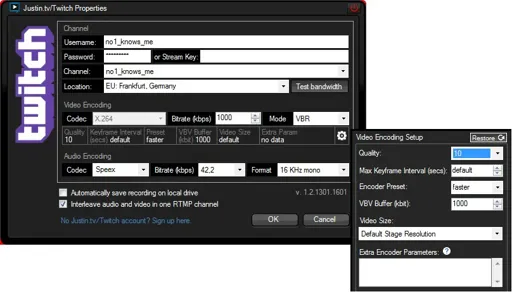
- Now, in the Justin.tv/Twitch Properties window that opens, configure the settings:
> In the Username field, enter the login you used when registering on twitch.tv (in my case, it's no1_knows_me)
> In the Password field, enter the password you use to log in to twitch.tv
> In the Stream Key field, you need to put in a little effort:
- Go to your account on twitch.tv
- Go to the Dashboard and click on Stream Application
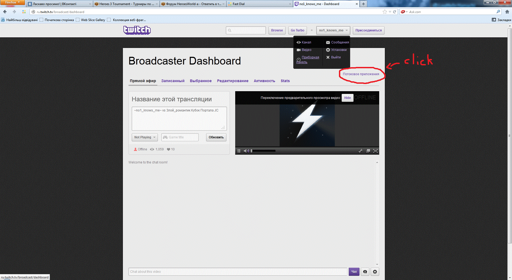
- A new tab opens, and on the right, click on Show Key (it should be something like live_38354680_wtg6G7u2irfUt5xe1Wd3QxpPhjlT2k) - this is our Stream Key. Copy this set of letters and numbers and paste it into the Stream Key field in the XSplit settings.
> In the Channel field, enter the channel name
> In the Location field, I think this is the connection to the servers. I chose Germany, Frankfurt, because it had the best ping.
> In the Bitrate field, leave it at 1000
> In the Mode field, leave it at VBR
- Under this field, click on the gear icon and set:
> In the Quality field, set it to 10
> In the Max Keyfram Interval (secs) field, leave it at default
> In the Encoder Preset field, select faster
> In the VBV Buffer (kbit) field, leave it at 1000
> In the Video size field, leave it at Default Stage Resolution
> Leave everything else as is. Click OK at the bottom.
This is what the settings window should look like:
Now, in the main XSplit window:
- In the lower left, click Add, then Add screen region... and drag to cover the entire screen.
- Now, in the center of the main XSplit window, a small picture of our stream has appeared - stretch it to the maximum.
- Click on the View tab, then Resolution and select 960x600
- Again, go to View, then Frame rate and set your value to 22.00 fps, which should be enough
- Again, View, then Scale viewport and set it to 20% - this will reduce the window.
That's it. Done.
Click on the Broadcast tab and click on Justin.tv/Twitch - your login. After a few seconds, you will be streaming everything that happens on your desktop :)
P.S. For high-quality streams, you need a licensed version of XSplit, as well as a powerful processor and a good internet connection. But even so, it's still better than streaming through TeamViewer. Good luck ;)
So, I'm writing my own version: How to start streaming on Twitch.tv, because there's a lot to read on Vaflya's page.
I think the settings will work for everyone, because my computer isn't that powerful (Athlon X2 250 Processor 3.00 Ghz, 4Gb RAM, GeForce GT240 1Gb), and my internet speed is, according to my provider, 5Mb/s.
So, let's get started:
Setting up XSplit for streaming on Twitch.tv
1) Register on www.twitch.tv
2) Register on www.xsplit.com and then download XSplit
3) Install XSplit. Launch it. Log in. Wait 10 seconds and click Continue
4) Now, let's set everything up:
- In the XSplit window, select the Broadcast tab, then Edit channels... and Add... - here, select Justin.tv/Twitch
- Now, in the Justin.tv/Twitch Properties window that opens, configure the settings:
> In the Username field, enter the login you used when registering on twitch.tv (in my case, it's no1_knows_me)
> In the Password field, enter the password you use to log in to twitch.tv
> In the Stream Key field, you need to put in a little effort:
- Go to your account on twitch.tv
- Go to the Dashboard and click on Stream Application
- A new tab opens, and on the right, click on Show Key (it should be something like live_38354680_wtg6G7u2irfUt5xe1Wd3QxpPhjlT2k) - this is our Stream Key. Copy this set of letters and numbers and paste it into the Stream Key field in the XSplit settings.
> In the Channel field, enter the channel name
> In the Location field, I think this is the connection to the servers. I chose Germany, Frankfurt, because it had the best ping.
> In the Bitrate field, leave it at 1000
> In the Mode field, leave it at VBR
- Under this field, click on the gear icon and set:
> In the Quality field, set it to 10
> In the Max Keyfram Interval (secs) field, leave it at default
> In the Encoder Preset field, select faster
> In the VBV Buffer (kbit) field, leave it at 1000
> In the Video size field, leave it at Default Stage Resolution
> Leave everything else as is. Click OK at the bottom.
This is what the settings window should look like:
Now, in the main XSplit window:
- In the lower left, click Add, then Add screen region... and drag to cover the entire screen.
- Now, in the center of the main XSplit window, a small picture of our stream has appeared - stretch it to the maximum.
- Click on the View tab, then Resolution and select 960x600
- Again, go to View, then Frame rate and set your value to 22.00 fps, which should be enough
- Again, View, then Scale viewport and set it to 20% - this will reduce the window.
That's it. Done.
Click on the Broadcast tab and click on Justin.tv/Twitch - your login. After a few seconds, you will be streaming everything that happens on your desktop :)
P.S. For high-quality streams, you need a licensed version of XSplit, as well as a powerful processor and a good internet connection. But even so, it's still better than streaming through TeamViewer. Good luck ;)
"Пришел, увидел, победил" - Юлий Цезарь.
"Пришел, скастовал, убежал" - Hit'n'Run.
- Почему женщины любят кентавров?
- И мужик в доме, и скотина в хозяйстве.
Штирлиц шел по коридору. Вдруг одна из дверей открылась, оттуда выскочил Борман, дал Штирлицу сильного пендаля и заскочил обратно. «Гарпия» - догадался Штирлиц.
"Пришел, скастовал, убежал" - Hit'n'Run.
- Почему женщины любят кентавров?
- И мужик в доме, и скотина в хозяйстве.
Штирлиц шел по коридору. Вдруг одна из дверей открылась, оттуда выскочил Борман, дал Штирлицу сильного пендаля и заскочил обратно. «Гарпия» - догадался Штирлиц.