


 ~no1_knows_me~

Auto-translated
To complete the picture, I decided to write this out as well :)
Setting up FFSplit for streaming on Twitch.tv
1) Register on www.twitch.tv
2) Download FFSplit www.ffsplit.com/download/
3) Install FFSplit and everything it asks for
4) Launch FFSplit and configure it:
- go to the Capture tab
- in the Microphone Source section, you can select a microphone if you plan to provide commentary
- set the Video Bit Rate field to 1000
- in the Video Encode Preset field, select faster
- leave the Video Resolution field at your current resolution
- set the Video Frame Rate field to 20
- you can choose any value for the Audio Bit Rate field; it doesn't matter
- the Audio Channels field is not important
now, this is important:
> below, it says Stream - check the box and click Setup next to it
> in the Streaming Service field, select Twitch/Justin.tv
> in the Server field, I have Germany, Frankfurt set in XSplit, so you can select the same here.
> in the Stream Key field, do the following:
- go to your account on twitch.tv
- go to the Dashboard and click on Stream Application
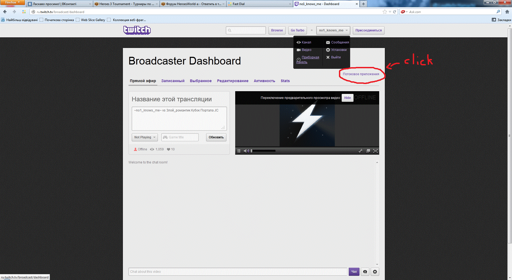
- a new tab will open, and on the right, click on Show Key (it should be something like live_38354680_wtg6G7u2irfUt5xe1Wd3QxpPhjlT2k). This is your Stream Key. Copy this string of letters and numbers and paste it into the Stream Key field.
> in the Username field, enter your login for twitch.tv
> click Apply at the bottom
That's all there is to it. Click START and start streaming.
Good Luck :)
P.S. These settings are for mid-range hardware and a mid-range internet connection!
Setting up FFSplit for streaming on Twitch.tv
1) Register on www.twitch.tv
2) Download FFSplit www.ffsplit.com/download/
3) Install FFSplit and everything it asks for
4) Launch FFSplit and configure it:
- go to the Capture tab
- in the Microphone Source section, you can select a microphone if you plan to provide commentary
- set the Video Bit Rate field to 1000
- in the Video Encode Preset field, select faster
- leave the Video Resolution field at your current resolution
- set the Video Frame Rate field to 20
- you can choose any value for the Audio Bit Rate field; it doesn't matter
- the Audio Channels field is not important
now, this is important:
> below, it says Stream - check the box and click Setup next to it
> in the Streaming Service field, select Twitch/Justin.tv
> in the Server field, I have Germany, Frankfurt set in XSplit, so you can select the same here.
> in the Stream Key field, do the following:
- go to your account on twitch.tv
- go to the Dashboard and click on Stream Application
- a new tab will open, and on the right, click on Show Key (it should be something like live_38354680_wtg6G7u2irfUt5xe1Wd3QxpPhjlT2k). This is your Stream Key. Copy this string of letters and numbers and paste it into the Stream Key field.
> in the Username field, enter your login for twitch.tv
> click Apply at the bottom
That's all there is to it. Click START and start streaming.
Good Luck :)
P.S. These settings are for mid-range hardware and a mid-range internet connection!
"Пришел, увидел, победил" - Юлий Цезарь.
"Пришел, скастовал, убежал" - Hit'n'Run.
- Почему женщины любят кентавров?
- И мужик в доме, и скотина в хозяйстве.
Штирлиц шел по коридору. Вдруг одна из дверей открылась, оттуда выскочил Борман, дал Штирлицу сильного пендаля и заскочил обратно. «Гарпия» - догадался Штирлиц.
"Пришел, скастовал, убежал" - Hit'n'Run.
- Почему женщины любят кентавров?
- И мужик в доме, и скотина в хозяйстве.
Штирлиц шел по коридору. Вдруг одна из дверей открылась, оттуда выскочил Борман, дал Штирлицу сильного пендаля и заскочил обратно. «Гарпия» - догадался Штирлиц.