


 Yourdestiny

Auto-translated
TeamViewer
Connecting via GameRanger works almost always, but in rare cases the connection is not established, and then the remote access and conferencing program TeamViewer may help. Also, TeamViewer can be a panacea for those who have problems connecting through a router.
Download from the website http://www.teamviewer.com/ru/
Next, step-by-step installation:
Go to your email, click on the link in the letter ==> Your account has been activated.
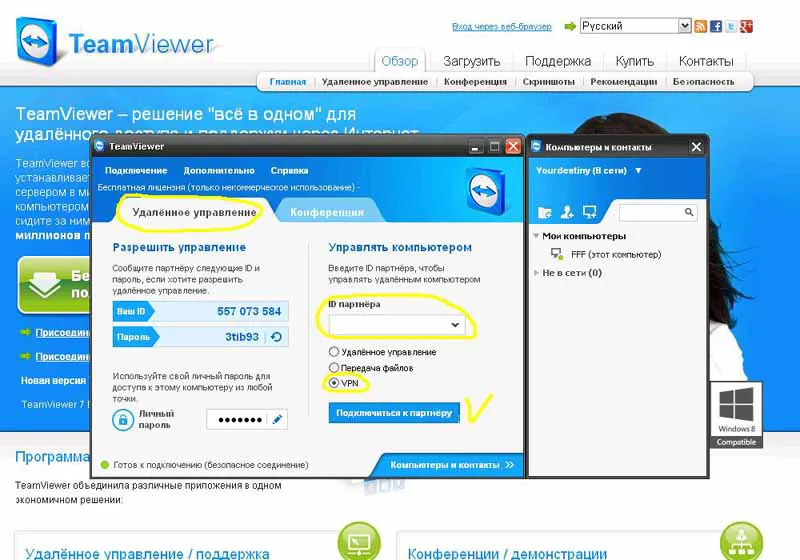
Launch TeamViewer:
- Click on "Remote Control";
- Your ID is visible on the left;
- To connect to someone, you need to know their ID and password;
- Enter the partner's ID;
- Check the box "VPN";
- Press "Connect to Partner".
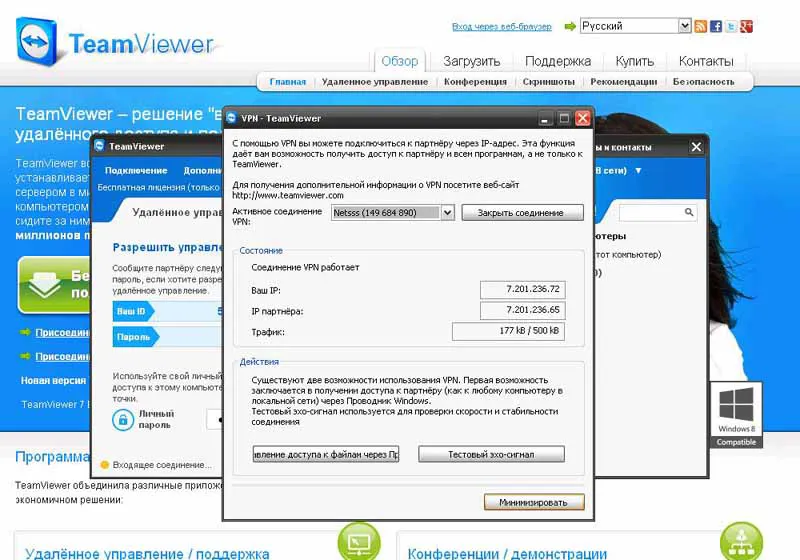
A window appeared indicating that the connection was established.
Your IP address assigned by the program and the IP address of the person you connected to are displayed.
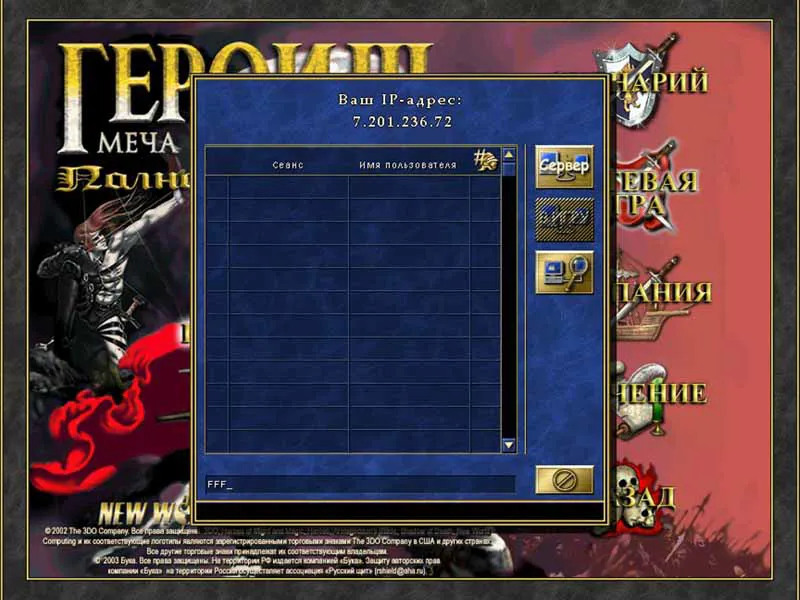
Next, launch the Heroes game over TCP IP network.
Most likely, instead of your IP address, there will be an IP address from TeamViewer.
To connect to you, the opponent needs to enter your IP address from TeamViewer.
----------------------------------------------------------------------
To create a broadcast via TeamViewer:
- Select the "Conference" tab;
- Start a quick conference;
- In the window that appears, you will see the number of your broadcast.
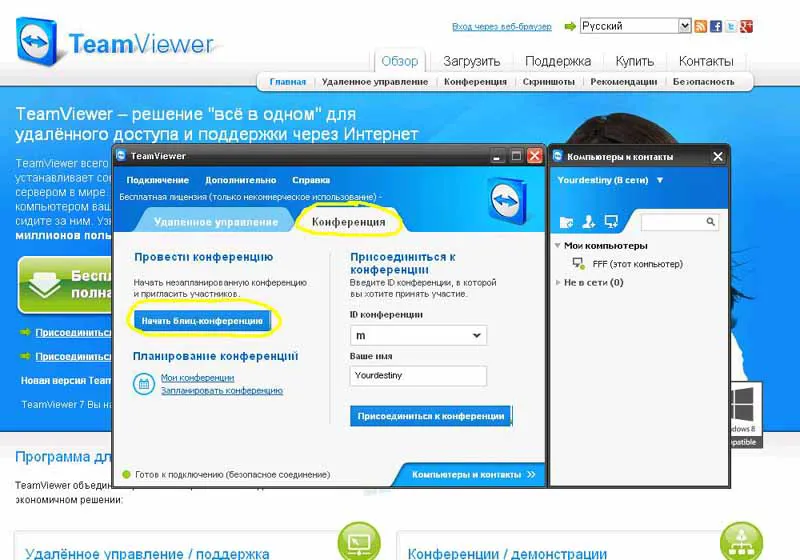
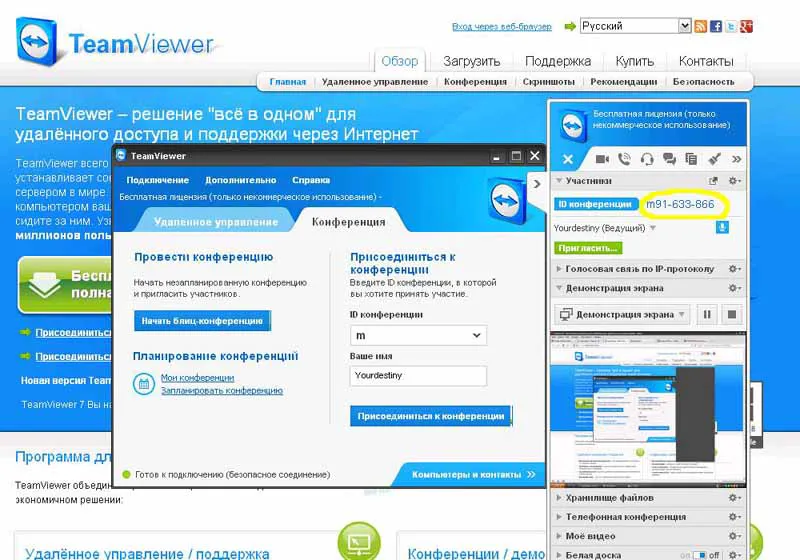
Accordingly, to view someone else's broadcast, enter their ID and click "Join Conference". Almost always, connecting through GameRanger works; in rare cases, the connection is not established, and in this case, TeamViewer may help
Connecting via GameRanger works almost always, but in rare cases the connection is not established, and then the remote access and conferencing program TeamViewer may help. Also, TeamViewer can be a panacea for those who have problems connecting through a router.
Download from the website http://www.teamviewer.com/ru/
Next, step-by-step installation:
Step 1:
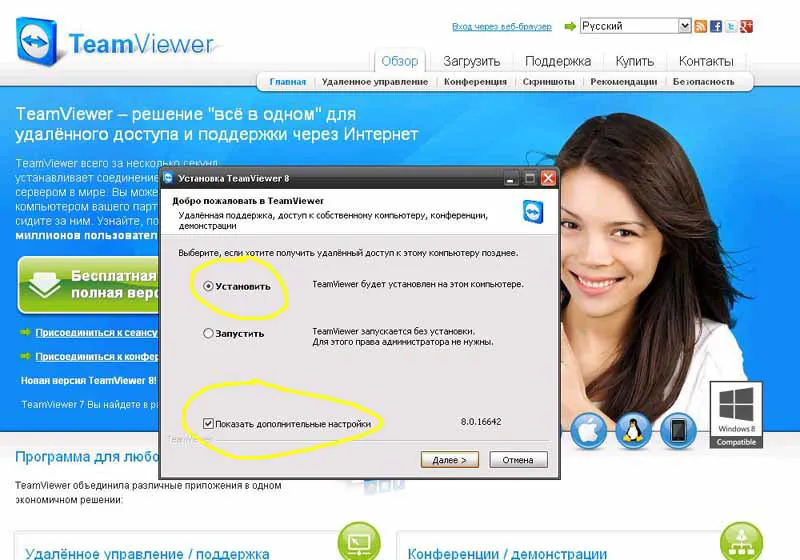
Step 2:
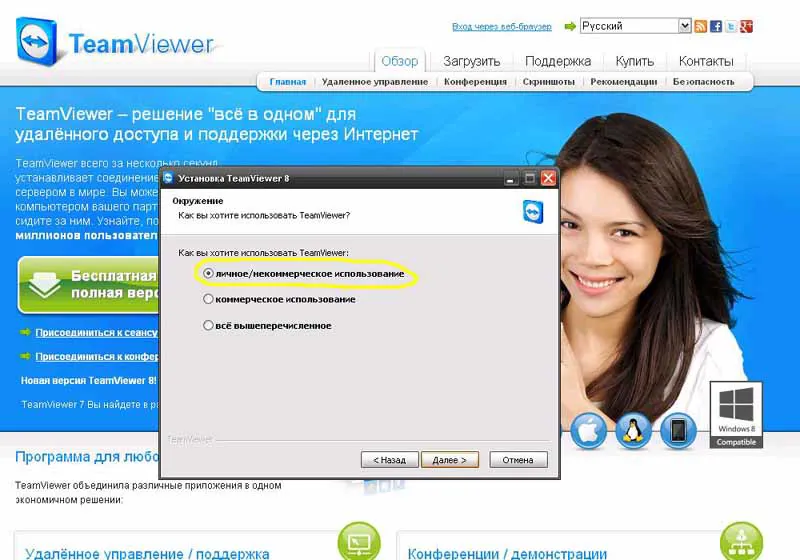
Step 3:
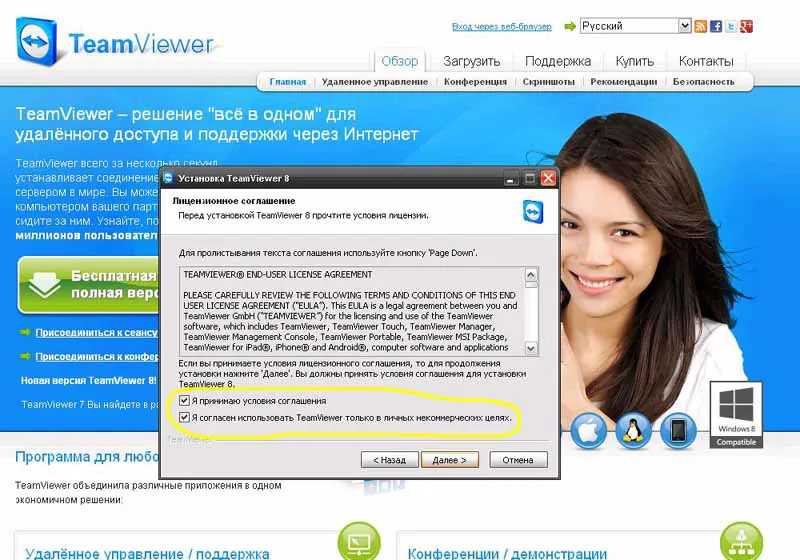
Step 4:
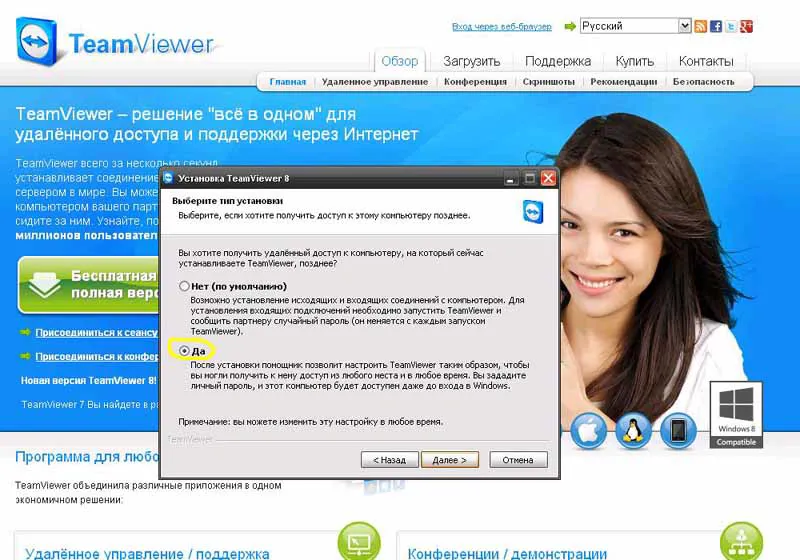
Step 5:
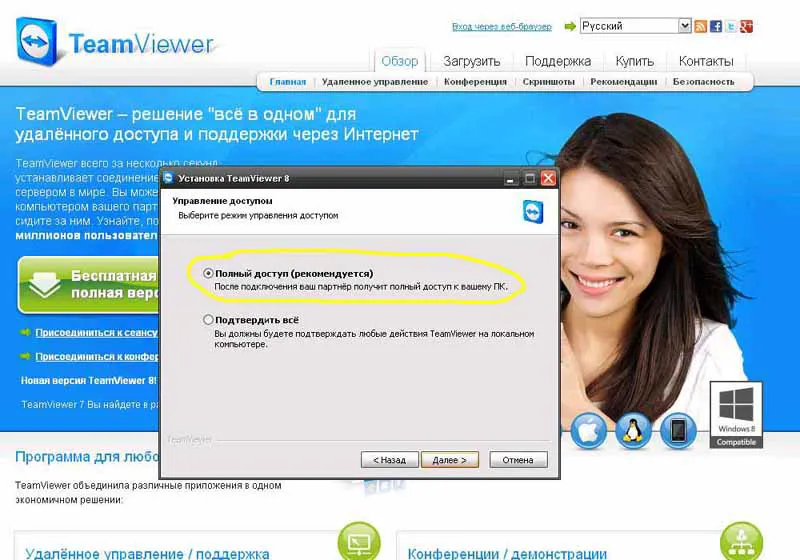
Step 6:
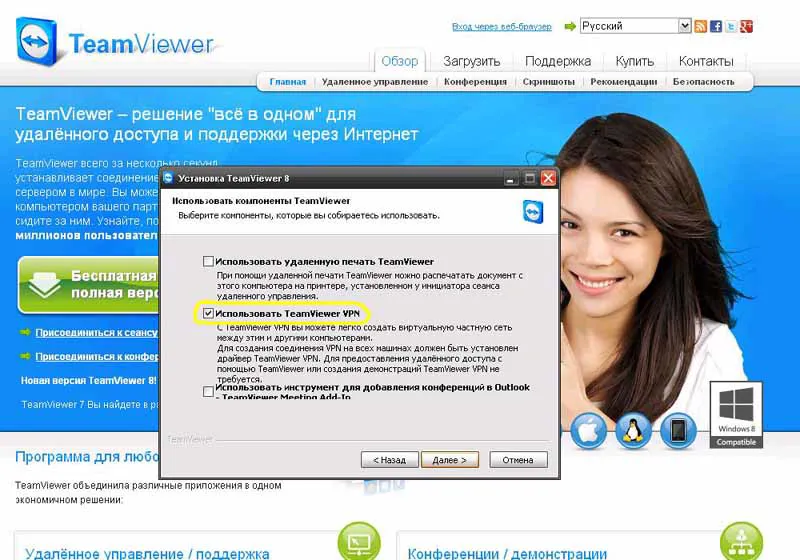
Step 7:
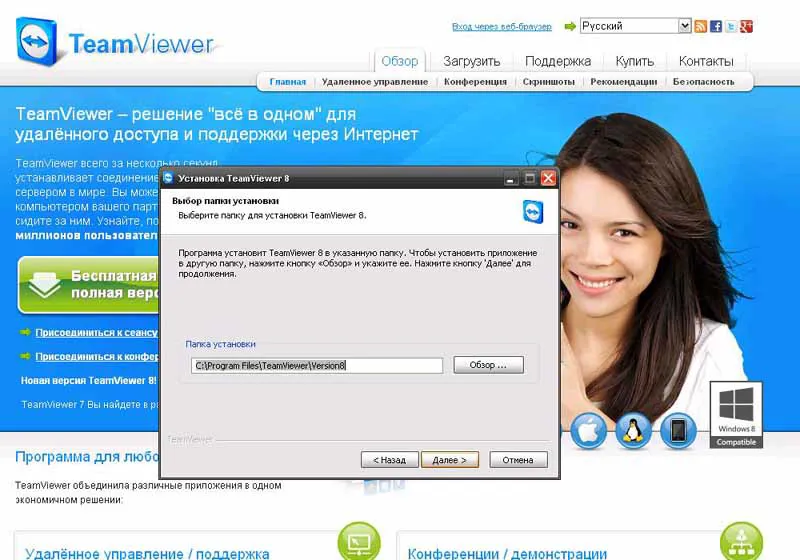
Step 8:
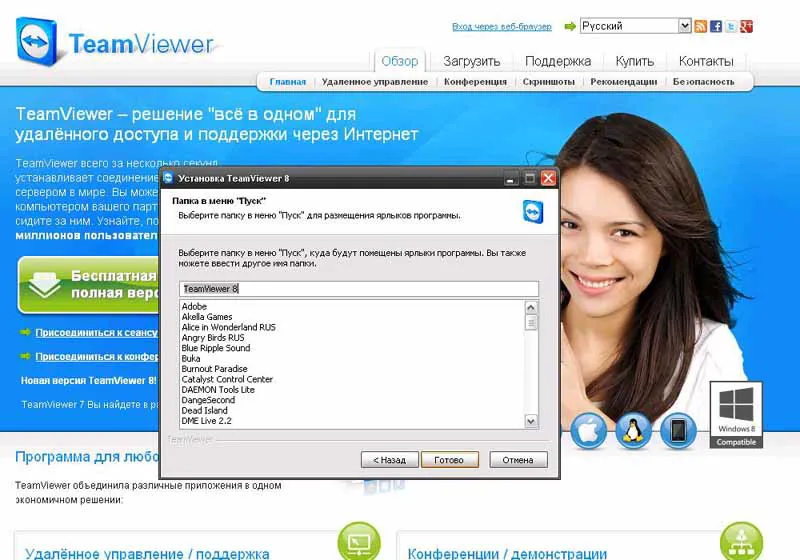
Step 9:
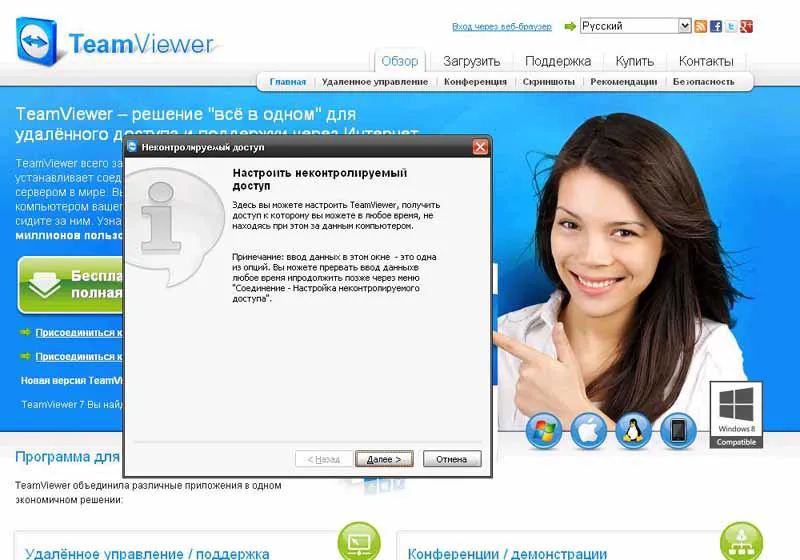
Step 10:
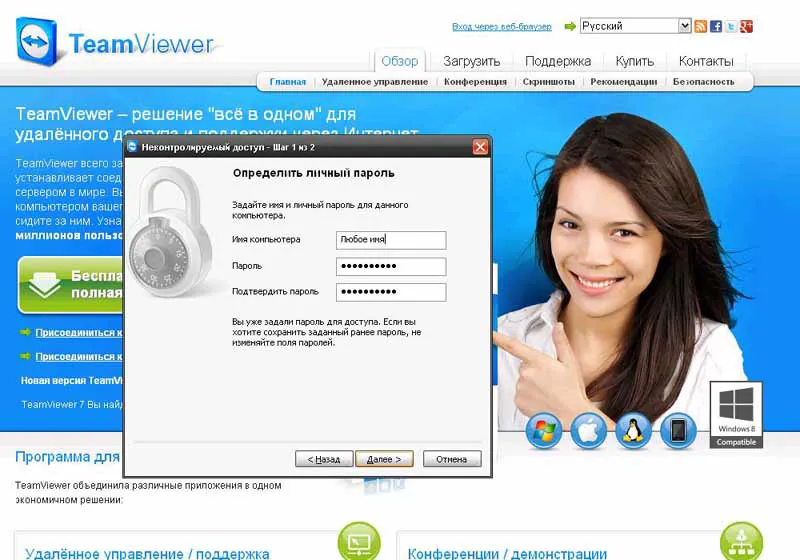
Step 11:
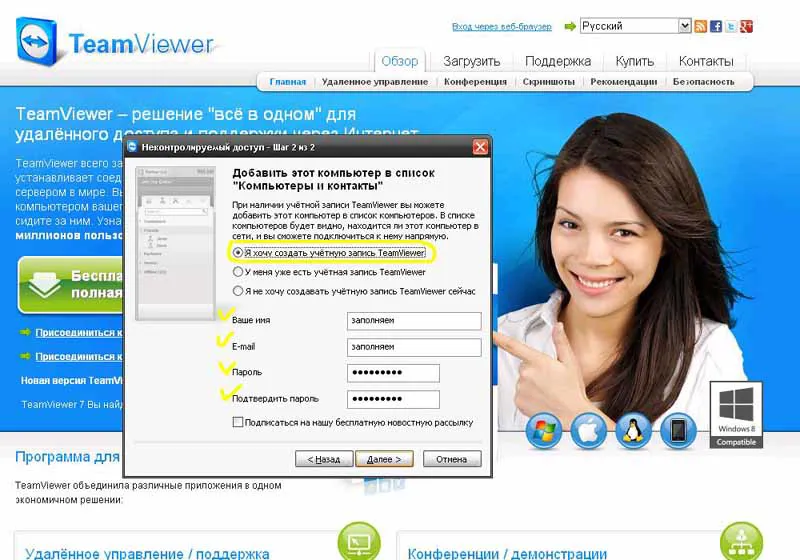
Step 12:
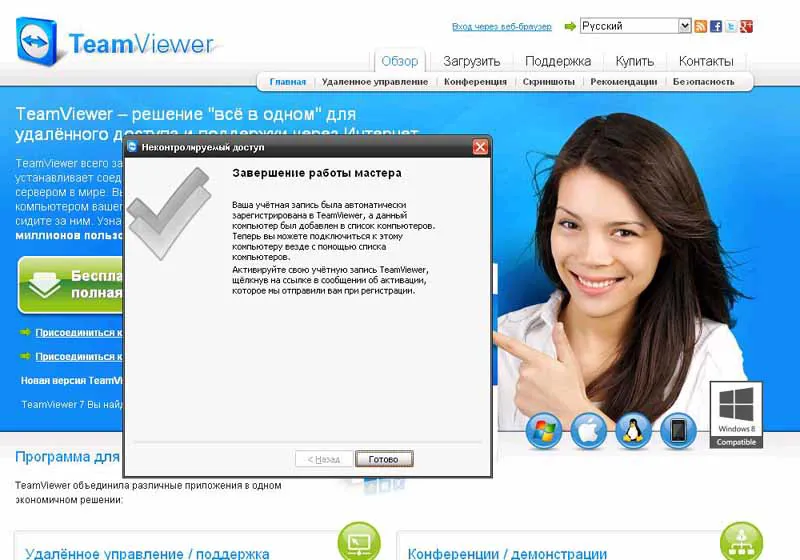
Step 2:
Step 3:
Step 4:
Step 5:
Step 6:
Step 7:
Step 8:
Step 9:
Step 10:
Step 11:
Step 12:
Go to your email, click on the link in the letter ==> Your account has been activated.
Launch TeamViewer:
- Click on "Remote Control";
- Your ID is visible on the left;
- To connect to someone, you need to know their ID and password;
- Enter the partner's ID;
- Check the box "VPN";
- Press "Connect to Partner".
A window appeared indicating that the connection was established.
Your IP address assigned by the program and the IP address of the person you connected to are displayed.
Next, launch the Heroes game over TCP IP network.
Most likely, instead of your IP address, there will be an IP address from TeamViewer.
To connect to you, the opponent needs to enter your IP address from TeamViewer.
----------------------------------------------------------------------
To create a broadcast via TeamViewer:
- Select the "Conference" tab;
- Start a quick conference;
- In the window that appears, you will see the number of your broadcast.
Accordingly, to view someone else's broadcast, enter their ID and click "Join Conference". Almost always, connecting through GameRanger works; in rare cases, the connection is not established, and in this case, TeamViewer may help