


 Pit for LM

Auto-translated
GameRanger
In some cases, Hamachi may not work; the server might be overloaded, or there might be no connection with your opponent. In this case, one of the most frequently used alternative programs is GameRanger.
After downloading and running the installer, the following window appears:
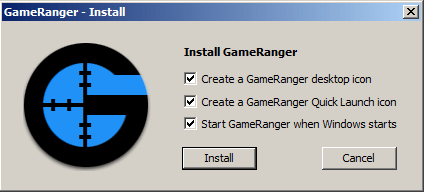
The first option places an icon on the desktop, the second places an icon in the "Start" menu, and the third automatically launches GR when the system starts. Select the desired settings and click Install.
The next window displays a welcome message; nothing needs to be selected here, so click Next. Then comes the license agreement; click Next. A new window will appear asking you to accept the terms of this agreement; click Agree.
In the next window:
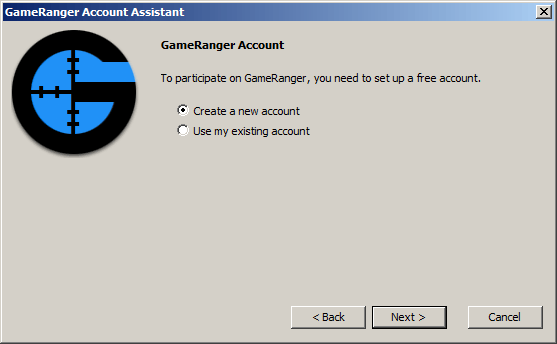
select the first option (creating a new account). Choose the second option if you already have an account.
Next, you'll be asked to enter an invitation code; if you don't have one, just leave the input field blank and click Next.
Then, enter a valid email address, password, and confirm the password.
Next, enter your nickname (the name under which other players will see you in GR) and your real name.
Next, you can configure a filter that blocks profanity:
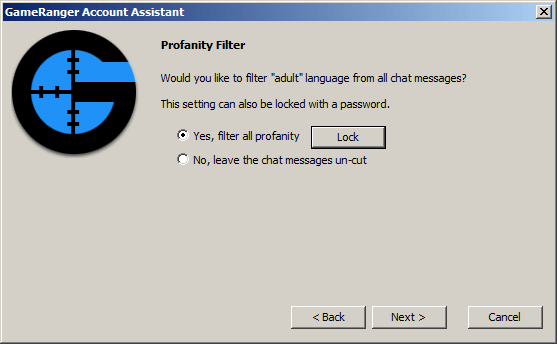
If you select the top line, the filter will be enabled; if you select the bottom line, it will be disabled. The Lock button allows you to set a password for subsequent changes to this option. Once you've configured the filter, click Next.
In the next window, you'll be asked to choose the city closest to you. If nothing similar is listed, you can check the box at the bottom "show cities from all timezones" – this will significantly expand the list. After selecting a city, click Next.
In the next window, you'll be asked to verify your email address; click Next.
Then, go to your email, read the letter from GR, and click on the link like "http://www.GameRanger.com/activate/A0369DF5". After that, return to the installer and click Next.
After this, you will enter the main program window:
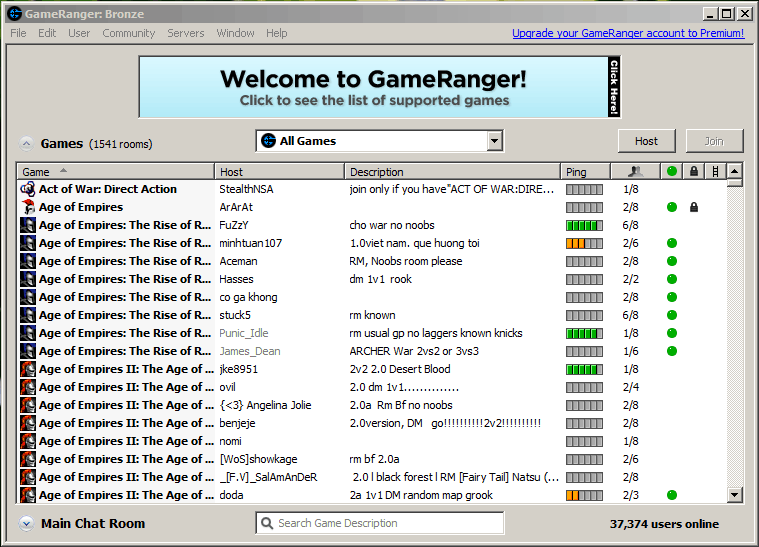
First, you need to specify the path to Heroes in GR. To do this, click Edit->Options in the menu. In the Games tab, find Heroes:
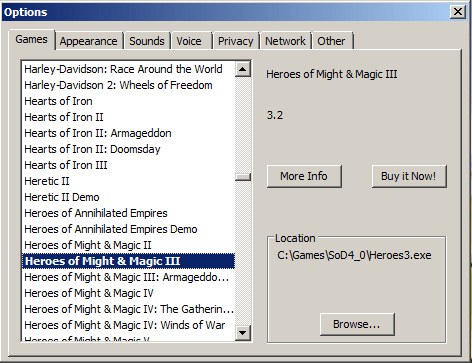
Check that the path in the lower right corner is correct or click the Browse button and manually specify the correct path.
After that, it is convenient to set a filter - in the main window, at the top center, select "my games" instead of "all games." Then only rooms for games with a specified path in GR will be displayed.
To create a new room, click the Host button (top right). There, you need to select the game (HOMM3), the maximum number of players, a description (usually people write what kind of game they want to play or specifically mention their opponent's nickname if agreed upon beforehand), and a password – to keep out clueless newbies who tend to join rooms without reading the descriptions; the 3 bottom checkboxes mean: allow joining after the game has started, allow only friends to join, and allow only Gold and Silver account users to join.
When everything is selected, click OK.
To enter an existing room, double-click on it or select it and click Join in the upper right corner.
Once the players have gathered, the person who created the room must click Start, and Heroes will launch automatically. There is no need to enter IP addresses. Just click "new game" or "load game," and your opponent will automatically join.
Warning: GR has one serious drawback. If the internet connection is lost, the game closes without the possibility of saving.
In some cases, Hamachi may not work; the server might be overloaded, or there might be no connection with your opponent. In this case, one of the most frequently used alternative programs is GameRanger.
After downloading and running the installer, the following window appears:
The first option places an icon on the desktop, the second places an icon in the "Start" menu, and the third automatically launches GR when the system starts. Select the desired settings and click Install.
The next window displays a welcome message; nothing needs to be selected here, so click Next. Then comes the license agreement; click Next. A new window will appear asking you to accept the terms of this agreement; click Agree.
In the next window:
select the first option (creating a new account). Choose the second option if you already have an account.
Next, you'll be asked to enter an invitation code; if you don't have one, just leave the input field blank and click Next.
Then, enter a valid email address, password, and confirm the password.
Next, enter your nickname (the name under which other players will see you in GR) and your real name.
Next, you can configure a filter that blocks profanity:
If you select the top line, the filter will be enabled; if you select the bottom line, it will be disabled. The Lock button allows you to set a password for subsequent changes to this option. Once you've configured the filter, click Next.
In the next window, you'll be asked to choose the city closest to you. If nothing similar is listed, you can check the box at the bottom "show cities from all timezones" – this will significantly expand the list. After selecting a city, click Next.
In the next window, you'll be asked to verify your email address; click Next.
Then, go to your email, read the letter from GR, and click on the link like "http://www.GameRanger.com/activate/A0369DF5". After that, return to the installer and click Next.
After this, you will enter the main program window:
First, you need to specify the path to Heroes in GR. To do this, click Edit->Options in the menu. In the Games tab, find Heroes:
Check that the path in the lower right corner is correct or click the Browse button and manually specify the correct path.
After that, it is convenient to set a filter - in the main window, at the top center, select "my games" instead of "all games." Then only rooms for games with a specified path in GR will be displayed.
To create a new room, click the Host button (top right). There, you need to select the game (HOMM3), the maximum number of players, a description (usually people write what kind of game they want to play or specifically mention their opponent's nickname if agreed upon beforehand), and a password – to keep out clueless newbies who tend to join rooms without reading the descriptions; the 3 bottom checkboxes mean: allow joining after the game has started, allow only friends to join, and allow only Gold and Silver account users to join.
When everything is selected, click OK.
To enter an existing room, double-click on it or select it and click Join in the upper right corner.
Once the players have gathered, the person who created the room must click Start, and Heroes will launch automatically. There is no need to enter IP addresses. Just click "new game" or "load game," and your opponent will automatically join.
Warning: GR has one serious drawback. If the internet connection is lost, the game closes without the possibility of saving.